

Privacy Policy
Purpose
Exchange Online limits the number of recipients (both internal and external) per message for each mailbox.
There is no built-in way to limit the number of external recipients that a specific group of users can send to.
If you use Outlook on the web (OWA), Outlook 365 on Windows, or Outlook on Mac, the RestrictExtRecips add-in will solve this problem.
For example, an Exchange Online administrator creates a distribution list named "RestrictExtRecips_2". The number 2 after the underscore means that each member of this list cannot add more than 2 external recipients to their message. If a user adds 3 or more external addresses to the "To" or "CC" field, the message will not be sent and a warning notification will be shown.
The application is an add-in for Outlook 365/Exchange Online.
Current version: 1.0.0.1
Installation
- Read End User License Agreement. FOLLOW THE NEXT STEPS ONLY IF YOU AGREE TO THE EULA.
- As a user with an Exchange Online administrator role, log in to Exchange Admin Center. Create a distribution list [1] named "RestrictExtRecips_2". Click "Edit" [2] and enter the prefix "Non-restricted:" and the comma-delimited string of internal domains in the "Description" field. Example:
Non-restricted: @contoso.com, @contoso.onmicrosoft.com - Verify that you are a member of the distribution list "RestrictExtRecips_2" [3]. Do not add more than 2 members to this list while running the demo.

- Log in to your Office 365 and select Outlook. Click the "New Message" button. Select "More actions" at the bottom of the message.

- Go to the bottom of the list and select
 Get Add-ins. Select My Add-ins. Scroll down and click Add a custom add-in.
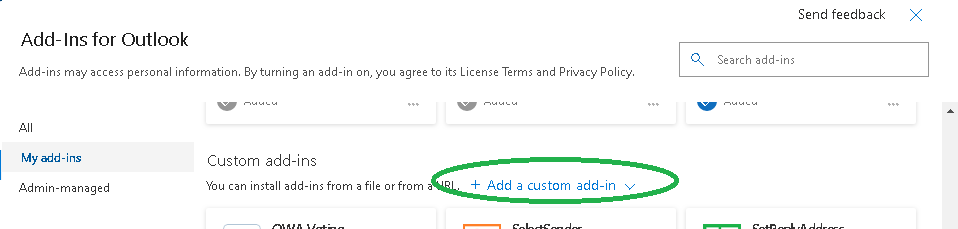
- From the drop-down list, select "Add from URL...". Enter https://www.ivasoft.com/RestrictExtRecipsOWA/restrictextrecipsowa.xml in the "Enter the URL of the add-in's manifest file:" field.
Click the OK button [1]. A warning message will appear. Click the "Install" button [2].
Note that by clicking "Install" you agree to the EULA.
- Make sure that RestrictExtRecips is in the list. Click the Close icon
 to close the "Add-ins for Outlook" window.

Testing
Open OWA and create a new message. Insert 3 external addresses in the "To" field. Enter a subject. Click the "Send" button. Two warning notifications will appear.

Note that you can place any number of external recipients into the "BCC" field.
Uninstallation
- Log in to your Office 365 and select Outlook.
- Click the "New Message" button. Select "More actions" at the bottom of the message.
- Go to the bottom of the list and select
Get Add-ins. Select My Add-ins.
- Click on "My Add-ins" and click the three-dot icon next to the RestrictExtRecips add-in [1] and select Remove [2].

RestrictExtRecips has been tested with:
- Chrome, Firefox, Edge, and IE 11 web browsers on Windows
- Outlook for Windows
- Chrome, Firefox, and Safari web browsers on Mac
- Outlook for Mac
RestrictExtRecips does not work with:
- web browsers for mobile devices
- Outlook for mobile devices
Demo Version Notes
- The demo is fully functional, but please do not add more than 2 members to any "RestrictExtRecips_XX" distribution list you are using for testing.
- If you have more than 2 members of the "RestrictExtRecips_XX" distribution list, the add-in will display the following warnings:

The add-in will delay message sending by 15 seconds. - You should buy as many RestrictExtRecips licenses as there are members in the "RestrictExtRecips_XX" distribution list. If you bought 3 licenses but your "RestrictExtRecips_2" distribution list contains 5 members, the add-in will display the following warnings:

The add-in will delay message sending by 30 seconds.
FAQ
Q. Can I restrict the number of internal recipients too?
A. Yes. Click "Edit" and delete the prefix "Non-restricted:" and the comma-delimited string of internal domains from the "Description" field of the RestrictExtRecips_XX distribution list. After that, the add-in will restrict both internal and external recipients.

Q. Will it help us be more GDPR compliant?
A. Yes. Sharing the email addresses with other recipients is a breach of GDPR regulations — see this article: 5 Ways Your Emails Could Breach GDPR. With RestrictExtRecips, you can force users to use "BCC" instead of "To" and "CC".
Q. How can I define the number of external recipients?
A. This number is defined by the name of the distribution list.
- To allow 5 external recipients, name the list "RestrictExtRecips_5".
- To allow 12 external recipients, name the list "RestrictExtRecips_12".
- To disable external recipients completely, name the list "RestrictExtRecips_0".
Q. What happens if the mailbox is a member of several "RestrictExtRecips_XXX" distribution lists?
A. The lowest number takes priority. If jdoe@contoso.com is a member of both "RestrictExtRecips_2" and "RestrictExtRecips_5", the allowed number of external recipients is 2.
Q. May I hide the "RestrictExtRecips_XXX" distribution list from address lists?

A. No. Hidden distribution lists are invisible to the add-in, which will prevent it from working correctly.
Q. I've created 2 distribution lists: RestrictExtRecips_3 (10 members) and RestrictExtRecips_10 (15 members). How many licenses should I buy?
A. 15 licenses.
Q. Is it possible to deploy the RestrictExtRecips add-in automatically to users via the Office 365 Admin Center?
A. Yes. See the Microsoft documentation. Note that there is a small bug in Office 365 Admin Center: you must set the full path to the manifest file URL, including the https:// prefix.

Pricing and Licensing
Payments are processed by PayPro Global. For payment-related support, contact PayPro Global Customer Support.


An Enterprise license covers all computers across a single organization worldwide, including all branches and remote users.