

Purpose
You can restrict the number of recipients per message in your Exchange organization, but there is no built-in way to restrict how many external recipients your users can send to.
If you run the classic desktop Outlook for Windows, the RestrictExtRecips add-in will solve this problem.
Suppose an Exchange administrator has created a distribution list named "RestrictExtRecips_2". The number 2 after the underscore means that each member of this list who has the RestrictExtRecips add-in installed cannot set more than 2 external recipients per message.
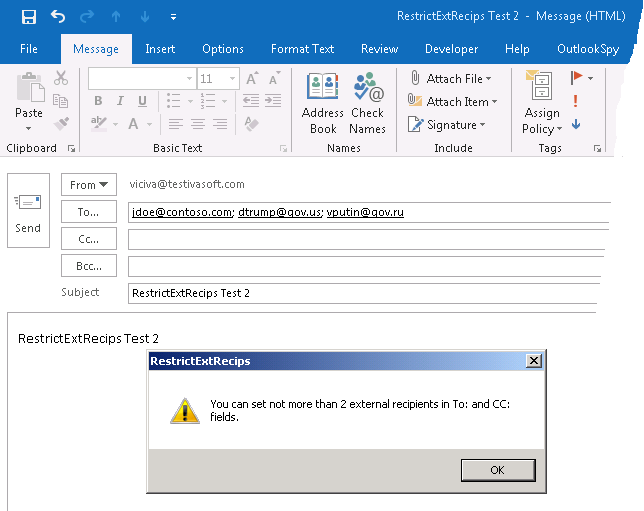
If a user adds 3 or more external addresses to the "To:" or "CC:" field, the message will not be sent and Outlook will display a warning pop-up window.
The application is a COM add-in compatible only with classic desktop Outlook for Windows. It does not support the new Outlook for Windows.

Current version: 1.0.0.3
Installation
- As an Exchange Online admin, log into the Exchange Admin Center. Create a distribution list named RestrictExtRecips_2. In the Notes field, enter the prefix "Non-restricted:" and the comma-separated string of internal domains. Example:
Non-restricted: @contoso.com, @contoso.onmicrosoft.com.
Make sure you are a member of this list.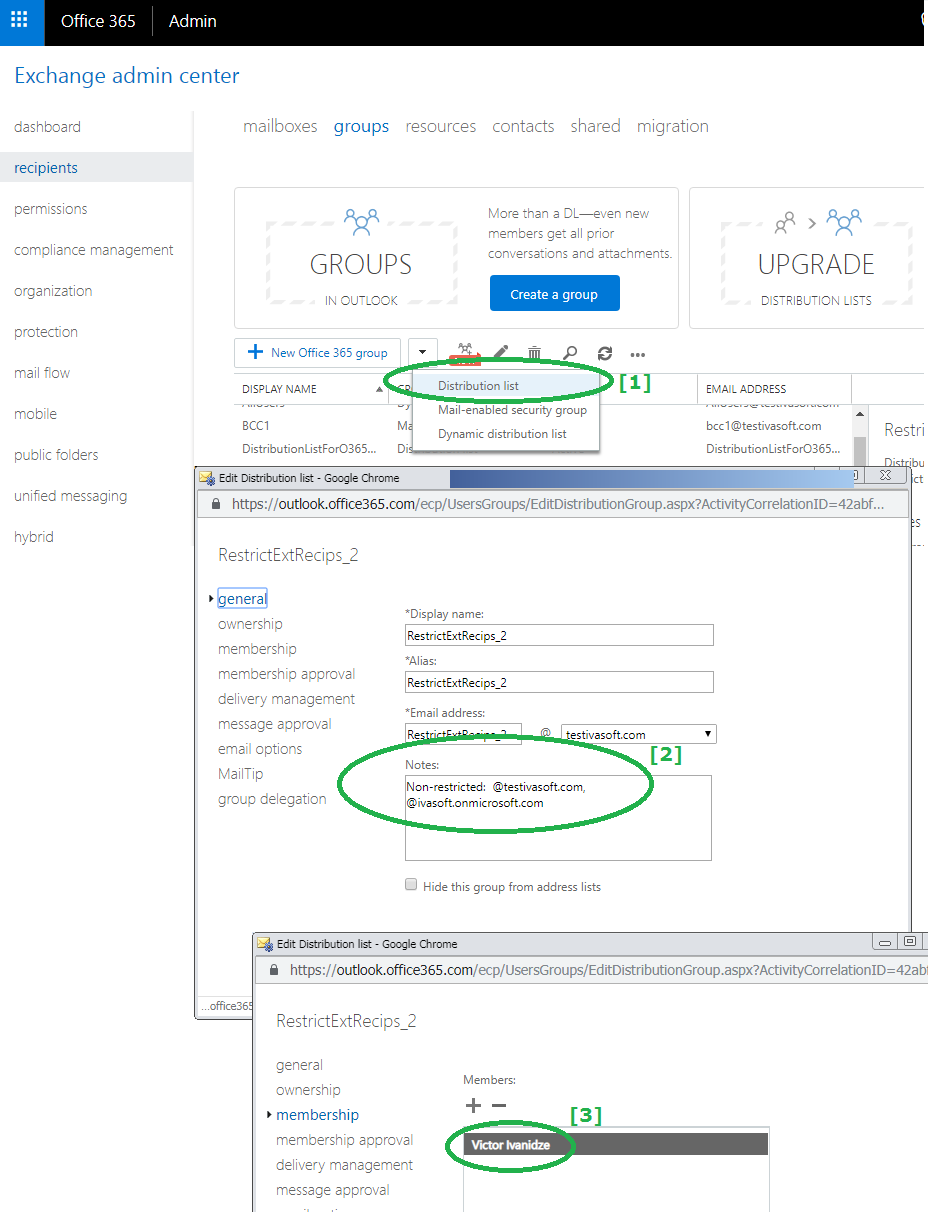
- On a client workstation where Outlook is installed, download the RestrictExtRecips-Demo.zip file and extract all files to the C:\Program Files\IvaSoft\RestrictExtRecips folder. Exit Outlook if it is running, then run RestrictExtRecips-Demo.msi and follow the instructions.
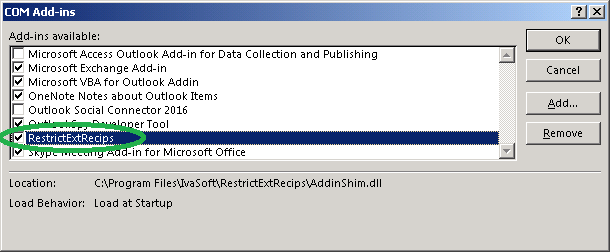
- Start Outlook and click File > Options > Add-ins. Select "COM add-ins" in the Manage: list box (at the bottom of the page) and click the Go button. Make sure that RestrictExtRecips is in the list.
Testing
- Open Outlook and create a new message. Insert three external addresses in the "To:" field. Enter a subject. Click the Send button. A warning message will appear.
- Note that you can place any number of external recipients into the "BCC:" field.
Uninstallation
You can uninstall the add-in via Settings > Apps ("Installed Apps" in Windows 11, "Apps & features" in Windows 10).
Demo Version Notes
In the demo version, the limit is fixed at 2 external recipients. In the full version, you can set any number from 0 (no external recipients allowed) to 500.
FAQ
Q. Will it help us be more GDPR compliant?
A. Yes. Sharing email addresses with other recipients is a breach of GDPR regulations. See this article: 5 Ways Your Emails Could Breach GDPR. With RestrictExtRecips, you can force users to use "BCC:" instead of "To:" and "CC:".
Q. How can I define the number of external recipients?
A. You define this number by naming the distribution list accordingly.
- To allow 5 external recipients, name the list "RestrictExtRecips_5".
- To allow 12 external recipients, name the list "RestrictExtRecips_12".
- To disable external recipients completely, name the list "RestrictExtRecips_0".
Q. What happens if the mailbox is a member of several "RestrictExtRecips_XXX" distribution lists?
A. The lowest number takes priority. So if jdoe@contoso.com is a member of both "RestrictExtRecips_2" and "RestrictExtRecips_5", the allowed number of external recipients is 2.
Q. May I hide the "RestrictExtRecips_XXX" distribution list from address lists?

A. No. Hidden distribution lists are invisible to the add-in, which will prevent it from working correctly.
Pricing and Licensing
Payments are processed by PayPro Global. For payment-related support, contact PayPro Global Customer Support.


An Enterprise license covers all computers across a single organization worldwide, including all branches and remote users.