

Purpose
This add-in ensures that emails you write after business hours or on weekends are held and sent only at the start of the next business day.
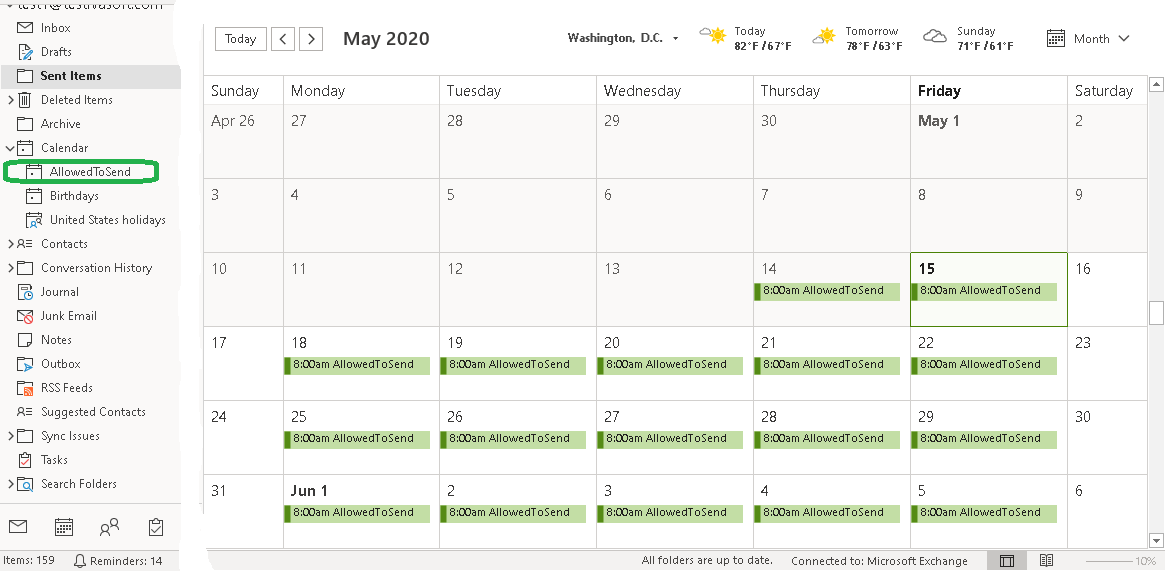
Set your business hours by modifying the recurring appointment named AllowedToSend, located in the AllowedToSend subfolder of your Calendar. This appointment defines when emails are sent immediately versus when they are delayed.
Current version: 1.0.9
The application is a COM add-in compatible only with classic desktop Outlook for Windows. It does not support the new Outlook for Windows.

Installation
- Download and extract OffHours-Demo.zip. Exit Outlook if it is running, then run OffHoursSetup(DEMO).exe and follow the instructions.
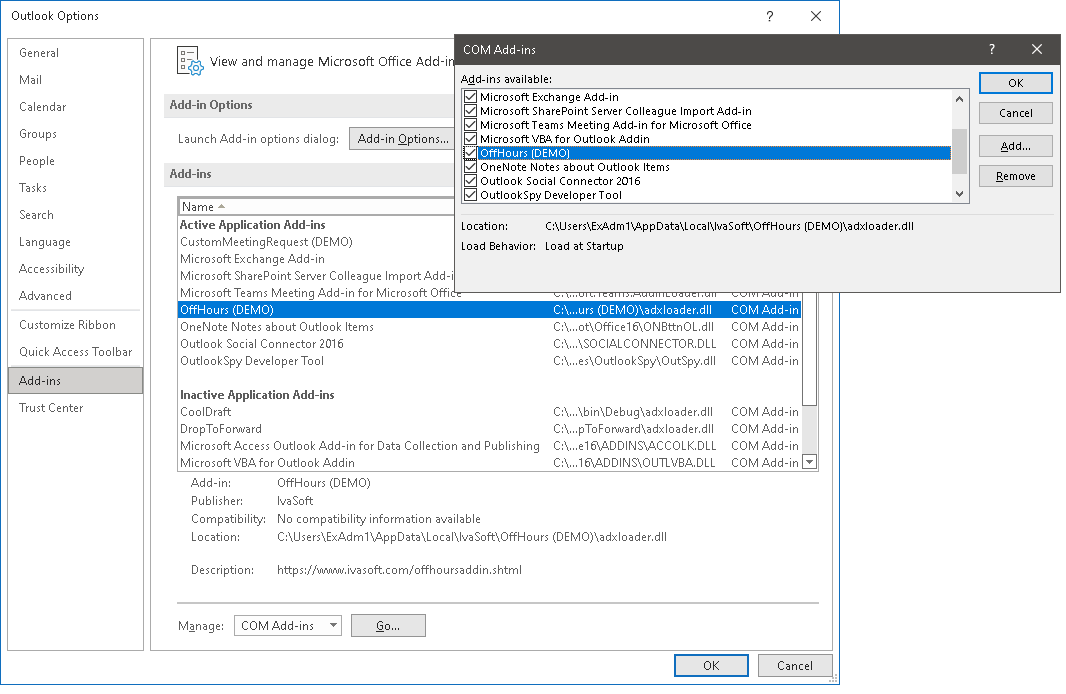
- Start Outlook. Select File > Options > Add-ins and verify that OffHours is listed under Active Application Add-ins.
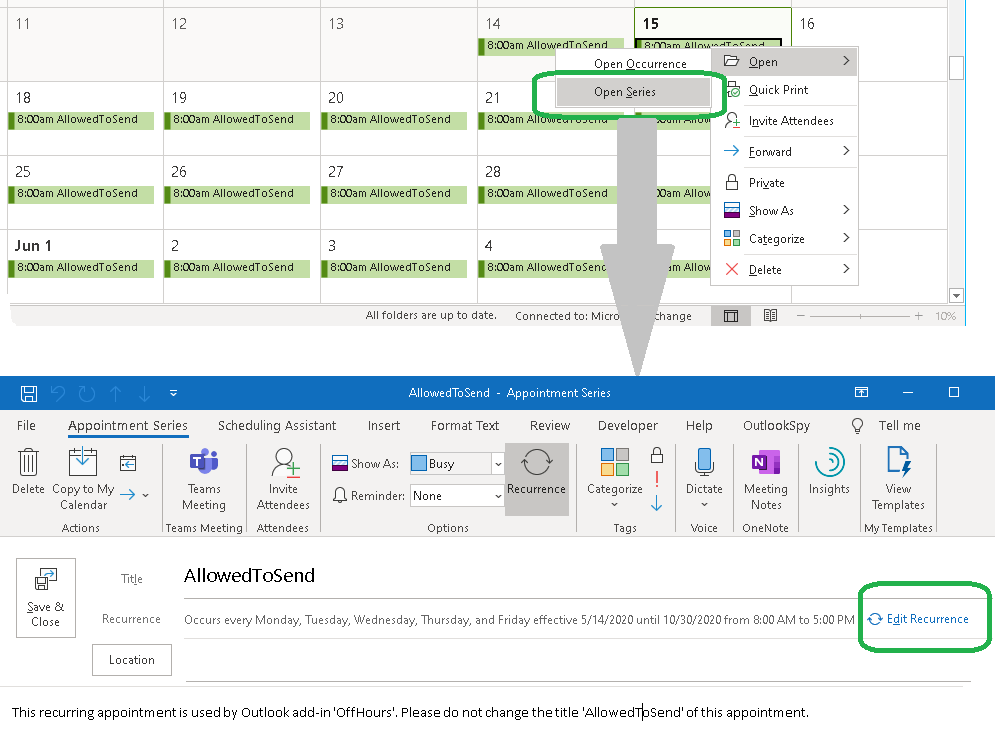
- Navigate to the AllowedToSend subfolder of your Calendar folder. Modify the recurring appointment AllowedToSend according to your needs.
Testing
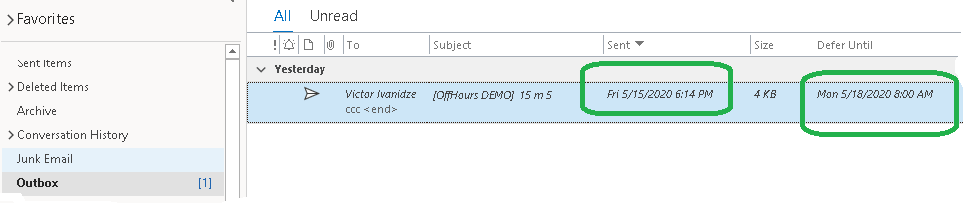
At any time during non-business hours, run Outlook and send a message. Verify that the message is held in the Outbox folder. Enable the Defer Until column in the Outbox. Note that Defer Until is set to the start of the next business day.
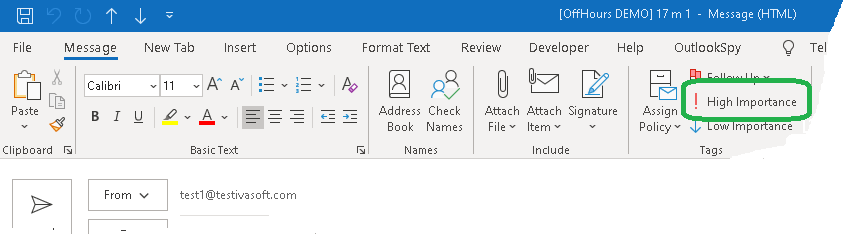
Note: Marking a message as High Importance allows it to be sent immediately, even during off hours.
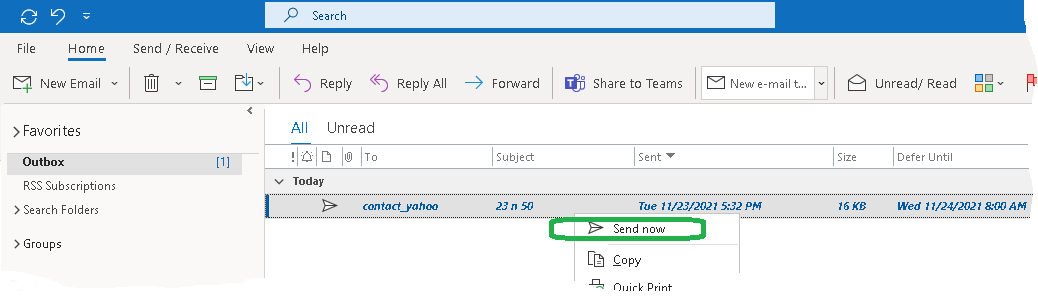
Note: To send an already-deferred message immediately, right-click it and click Send now.
- At any time during business hours, run Outlook and send a message. Verify that the message is sent immediately and appears in the Sent Items folder.
Demo Version Notes
The demo version appends [OffHours DEMO] to the subject line of each delayed message.
Uninstallation
You can uninstall the add-in via Settings > Apps ("Installed Apps" in Windows 11, "Apps & features" in Windows 10).
Pricing and Licensing
Payments are processed by PayPro Global and BMT Micro. PayPro Global Customer Support BMT Micro Customer Support


An Enterprise license covers all computers across a single organization worldwide, including all branches and remote users.
Affiliate Program
Earn a commission on every sale you refer through the PayPro Global affiliate network.
- Register as an IvaSoft affiliate in PayPro Global Affiliate System.
- Review the IvaSoft affiliate campaign details, including enrolled products and target markets.
- Wait for approval from IvaSoft to activate your affiliate agreement.
- Download the promotional materials and referral link from your affiliate agreement.
- Place a banner ad or contextual link on your website or blog.
- Receive monthly payouts as outlined in your affiliate agreement.