


Problem
A user describes the problem:
"At our company, each department has a shared mailbox. They organize this by categorizing incoming email with the name of the employee who will handle it. After reading and replying, the email will be put in the archive.
The problem is that when a specific email is replied to, we need to categorize it again — wasting time on determining who is dealing with what."
Purpose
The RecategorizeIt flow implements the following scenario: multiple people process emails delivered to a shared mailbox. A manager assigns each new message to a team member by applying a category. Each subsequent incoming message in the thread is categorized automatically by the flow.
For example, suppose a new invoice from a customer ("FIRST EMAIL" below) is delivered to the shared mailbox at 9:31 AM. A manager assigns this invoice to John Doe manually by setting the "JohnDoe" category at 9:35 AM. John Doe replies to the customer at 9:41 AM, and the customer then replies twice ("2ND EMAIL" and "3RD EMAIL"). Both replies are automatically categorized as "JohnDoe" by the flow.
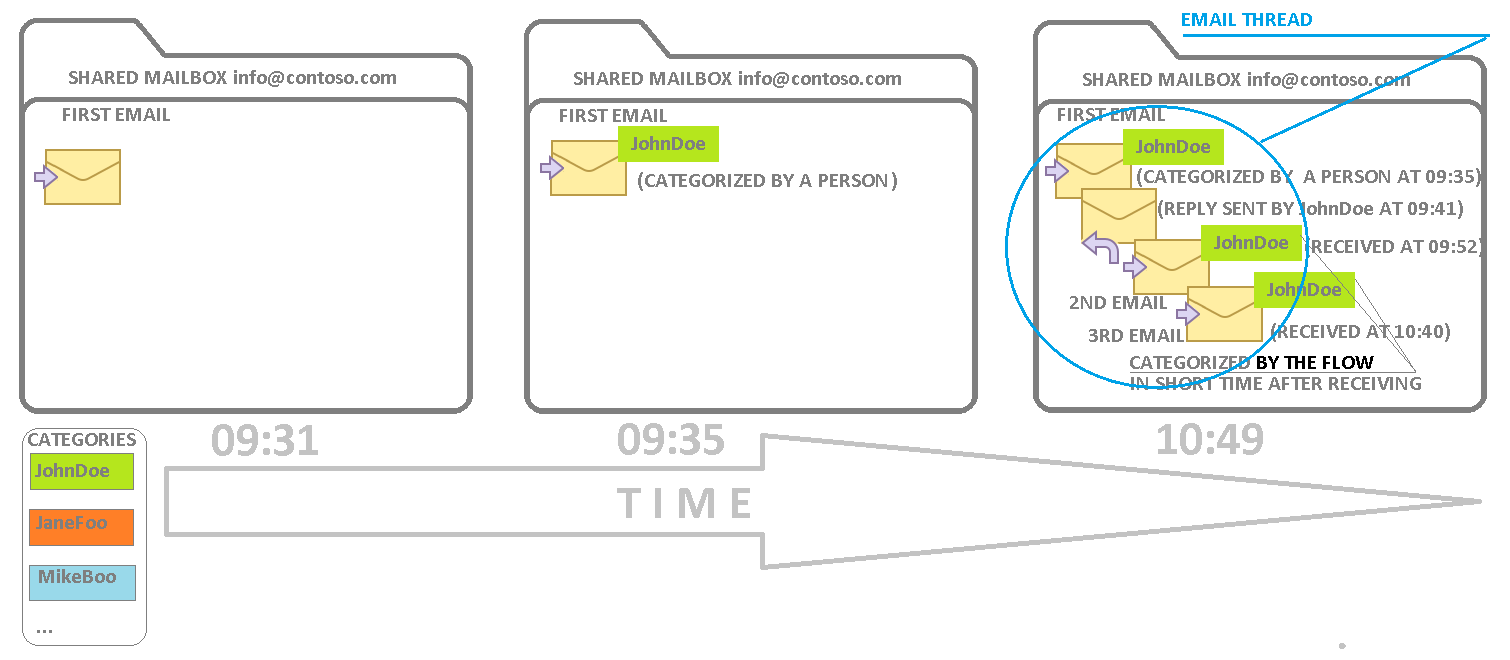
The application consists of two flows: RecategorizeIt and RecategorizeScheduled.
Current version: 1.0.6
Installation
Let us assume your shared mailbox is "info@contoso.com".
- The flow uses the "Office 365 Outlook" and "Office 365 Users" connections. When importing the flow, use your existing connections or create new ones.

- Using an account that has full access to the shared mailbox "info@contoso.com" and the right to send as "info@contoso.com", open Power Automate and import "RecategorizeIt6.zip", following the Power Automate documentation.

- In the trigger, enter the UPN of your shared mailbox in the "Original Mailbox Address" field and select "Inbox" in the "Folder" field. Then click the three dots, select "Settings", and set "Split On" to "Off". Save the flow.

- Turn on the flow.

Testing
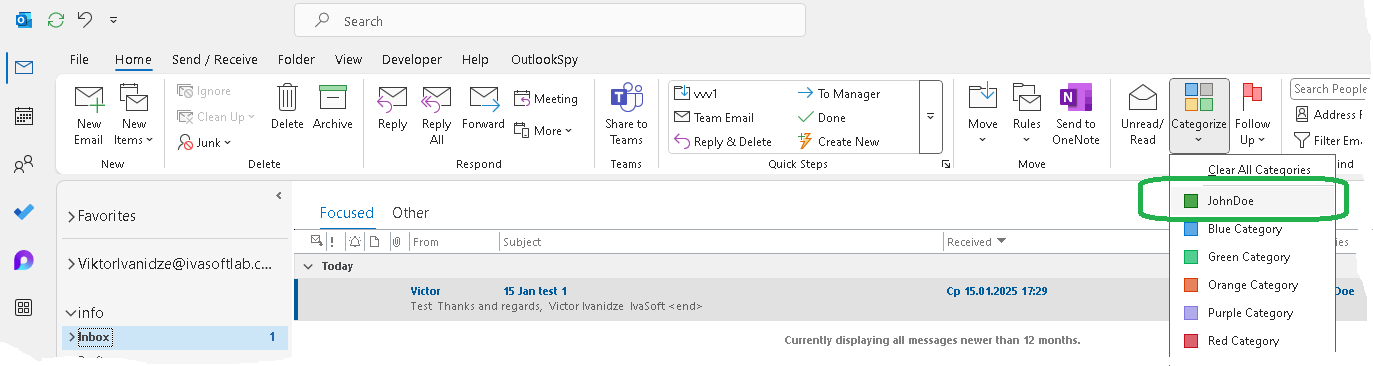
- Send a test message to the shared mailbox from an external address. Open Outlook, navigate to the Inbox of the shared mailbox, and categorize this test message with the "JohnDoe" category.
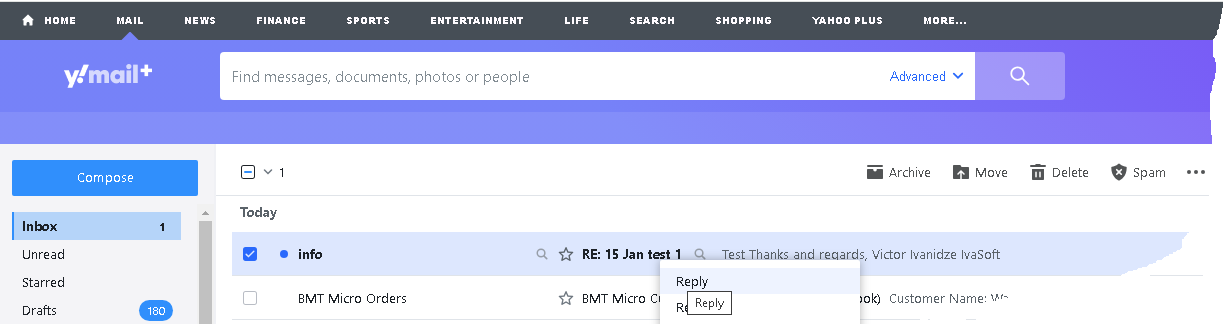
- Click Reply and send the reply message.
- Reply to that message from the external address.
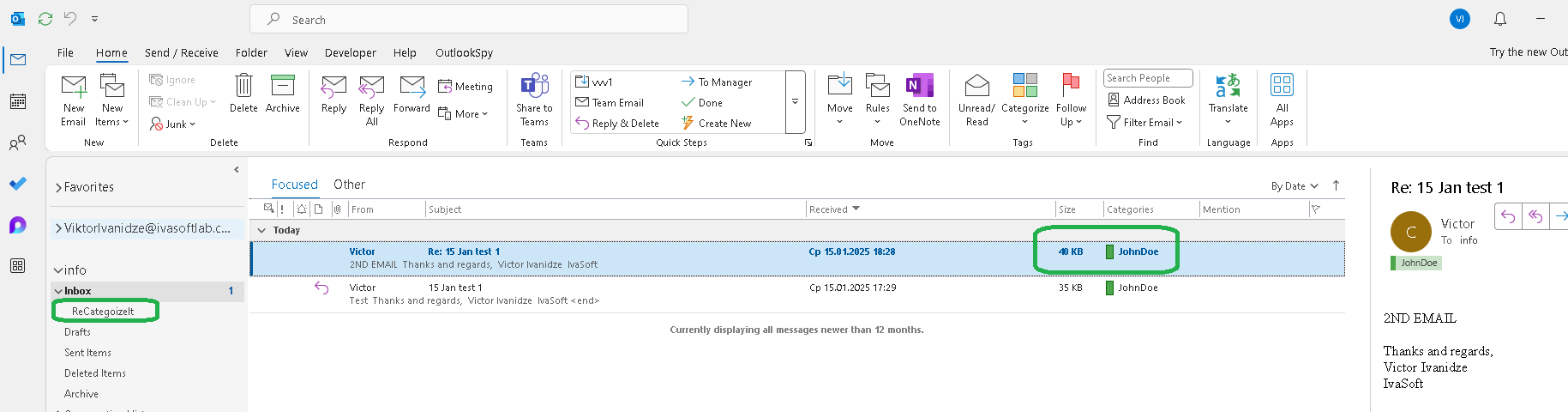
- The second email should now be categorized automatically. A special subfolder, named "RecategorizeIt", has been created under Inbox by the flow. Do not delete it.
Warning
After Purchase
You will receive a download link for the ZIP file. Import it into Power Automate as described in the Installation section.
Pricing and Licensing
Payments are processed by PayPro Global. For payment-related support, contact PayPro Global Customer Support.

