


Updated:
6 October 2024
Purpose
The "Office 365 Outlook" connector in Power Automate does not provide an action to retrieve the message class of incoming emails.
Using the GetMessageClass flow template, you can retrieve the message's class string and store it in a variable.
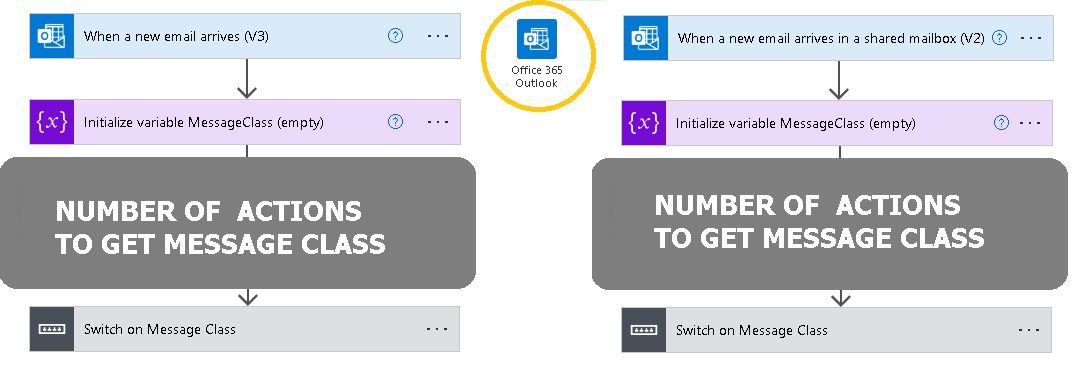
The package includes two flows: one for a user mailbox (GetMessageClass1001.zip) and one for a shared mailbox (GetMessageClass_shared1001.zip).
The GetMessageClass flow, as delivered, retrieves the message class of emails that arrive via the "When a new email arrives (V3)" trigger or the "When a new email arrives in a shared mailbox (V2)" trigger.
To perform additional actions, you must modify the flow.
To perform additional actions, you must modify the flow.
Current version: 1.0.1
Installation
-
For a user mailbox:
- Open Power Automate and import "GetMessageClass1001.zip", following the Power Automate documentation.

- Select Inbox in the "Folder" field.

- Save the flow.
- Turn on the flow.
- Open Power Automate and import "GetMessageClass1001.zip", following the Power Automate documentation.
-
For a shared mailbox:
- Select a shared mailbox (for example,
processing@contoso.com). - Open Power Automate and import "GetMessageClass_shared1001.zip", following the Power Automate documentation.
- Configure the fields as shown below.

- Save the flow.
- Turn on the flow.
- Select a shared mailbox (for example,
Testing
- Send a message to the user mailbox (if you are using the
GetMessageClassflow) or to the shared mailbox (if you are using theGetMessageClass_sharedflow). - Open the flow history and verify that the variable
MessageClassis populated withIPM.NOTE.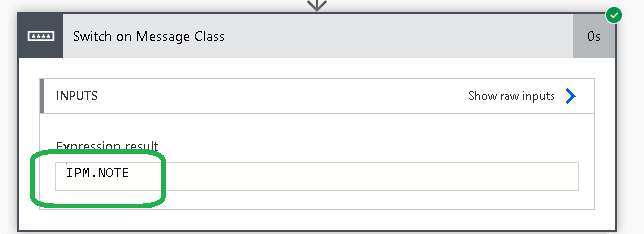
Warning
We do not offer a demo version; however, we offer a full money-back guarantee. If you are not satisfied, please contact us to request a refund. You must delete the flow upon receiving a refund.
After Purchase
You will receive a download link for the ZIP file. Import it into Power Automate as described in the Installation section.
Pricing and Licensing
This product is licensed per mailbox (user or shared).
Payments are processed by PayPro Global. For payment-related support, contact PayPro Global Customer Support.
Payments are processed by PayPro Global. For payment-related support, contact PayPro Global Customer Support.
License type
Price per unit

